Best Parental Control Apps 2026 — Android, iPhone & Router-Level
From local device restrictions to network-wide blocking, managing your family's screen time has never been more vital. Discover how to effectively secure apps, restrict content, and protect private folders across every device.
The most effective parental control strategy utilizes a layered approach. Start with built-in OS tools (like Apple Screen Time or Android Family Link) for basic limits. Next, use a dedicated App Lock (like Folder Lock) to locally password-protect specific settings, financial apps, and photo galleries so children cannot bypass limits. Finally, apply router-level filtering for network-wide safety.

Parental Controls & Screen Time — General Overview
Managing screen time and online safety requires more than just telling a child to put the phone down. Modern smart devices offer complex environments where harmless games sit adjacent to unmoderated browsers, financial apps, and private photo galleries.

While many parents seek a single "magic bullet" app, true security involves configuring the best mobile privacy settings available natively, supplemented by third-party tools that lock down vulnerabilities the OS leaves open.
Phone Privacy Score Quiz
Are your device's parental controls actually secure? Answer these 3 quick questions to find out.
1. Do you use the same PIN to unlock the phone and to lock specific apps?
2. Can a user uninstall your parental control app without a password?
3. Is your photo gallery explicitly locked behind a separate biometric/PIN prompt?
Calculating...
The 4 Layers of Parental Control Enforcement
When searching for the best parental control apps, it helps to understand where the control is happening. A complete setup touches four layers:
1. Device-Level (App Lockers)
Controls right on the hardware. Includes locking specific apps (like WhatsApp or banking apps), hiding sensitive apps from the home screen, and biometric app locks. Essential because it survives network changes.
2. Account-Level (OS Native)
Apple Screen Time or Google Family Link. Best for setting overall time limits and tracking usage via the cloud.
3. ISP/Carrier-Level
E.g., AT&T Parental Controls (Secure Family). Filters cellular data before it even hits the phone. Great for blocking texts/calls and tracking location.
4. Router-Level
Protects the home Wi-Fi network. If a child bypasses device controls, the router still blocks explicit domains globally. It covers smart TVs and gaming consoles too.
Method 1: Built-In Screen Time & App Limits
Before installing third-party software, configure what your phone already offers. Both Android and iPhone provide baseline protections.
Apple Screen Time Bypass Risks
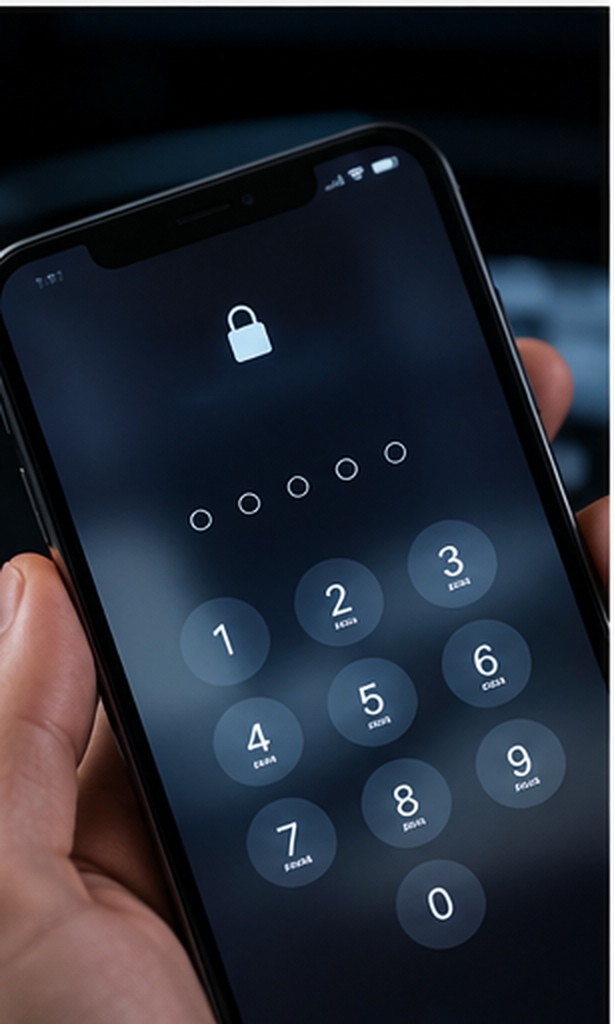
On iOS, Screen Time allows you to set "App Limits" and "Downtime". However, resourceful users frequently search for an apple screen time bypass. Common exploits include changing the device time zone or uninstalling/reinstalling apps to reset timers. To combat this, parents must use a strong Screen Time passcode and disable the ability to install/delete apps in Content & Privacy Restrictions.

Android Parental Controls
Android utilizes Google Family Link. It effectively manages screen time and app installations. However, Android version fragmentation means security features vary wildly between manufacturers. While Samsung offers the robust Samsung Secure Folder, a standard Motorola or Pixel device might lack a native way to lock individual apps locally without locking the whole phone.
Method 2: App Locks & Secure Folders
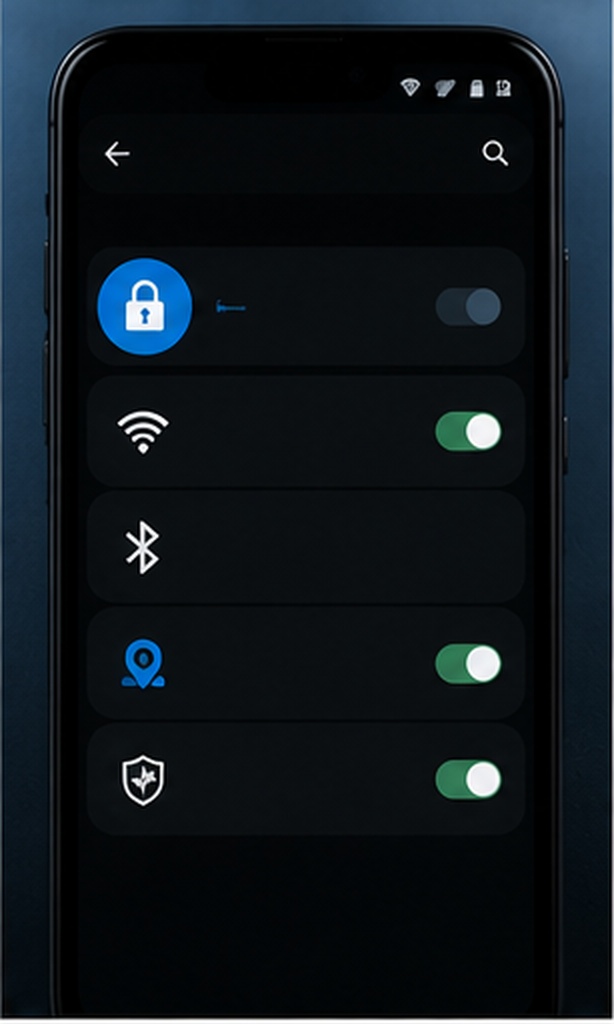
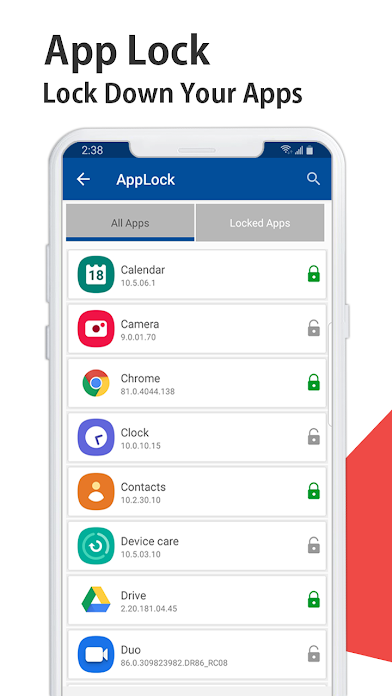
This is where local privacy apps shine. If you want to know how to lock apps for kids using parental controls without restricting the whole device, an app locker is the answer.
App Lock vs Phone Screen Lock — Which Is Enough?
A phone screen lock protects the device from strangers. An app lock protects the device from people who already have the device in their hands (like your children). If you hand your phone to a child to play a game, you need an app lock to ensure they don't open your email, banking apps, or photo gallery.
Samsung Secure Folder vs Third-Party App Locks
Samsung Secure Folder creates an entirely separate, encrypted environment on the phone. It's excellent, but hardware-restricted to Samsung devices. If you use any other Android phone, or if you need more granular control over exactly which apps are locked (rather than moving them to a separate folder), a third-party app locker android is necessary.
Our Recommended Local Privacy Tool: Folder Lock
For Android users who need absolute certainty that specific apps, photos, and files remain off-limits to children (and snoops), native tools aren't enough. We recommend Folder Lock to seal the gaps OS developers leave behind.

Why it works better:
- Military-Grade Data Scrambling: Secures your private files utilizing AES 256-bit cryptographic standards, ensuring sensitive data is mathematically unreadable to intruders.
- Impervious to Safe Mode Exploits: Integrates at the operating system's kernel level, meaning tech-savvy users cannot bypass restrictions by simply rebooting the computer.
- Active Intruder Surveillance: Automatically logs incorrect PIN guesses and silently photographs unauthorized users attempting to access your protected mobile vault.
- Encrypted Portable Vaults: Allows you to generate self-contained, password-protected enclaves on USB thumb drives that can be opened securely on other machines.
Available on Google Play • Millions of downloads worldwide
Beyond Basic App Locking: Comprehensive Digital Security
While local app lockers handle mobile privacy, a truly secure family ecosystem requires protecting data across all shared devices—including home PCs, MacBooks, and cloud storage. Advanced security suites expand protection far beyond simple PIN screens.
Kernel-Level "Safe Mode" Resilience
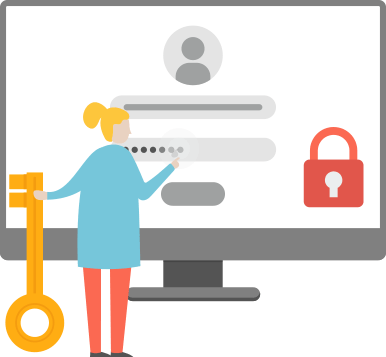
Resourceful teenagers often try to bypass basic desktop parental controls by rebooting the family computer into Windows Safe Mode, a diagnostic state that disables most third-party background applications. Premium security software counters this by integrating directly at the OS kernel level. This ensures that your locked folders, hidden media, and restricted drives remain completely inaccessible, regardless of how the machine is booted.
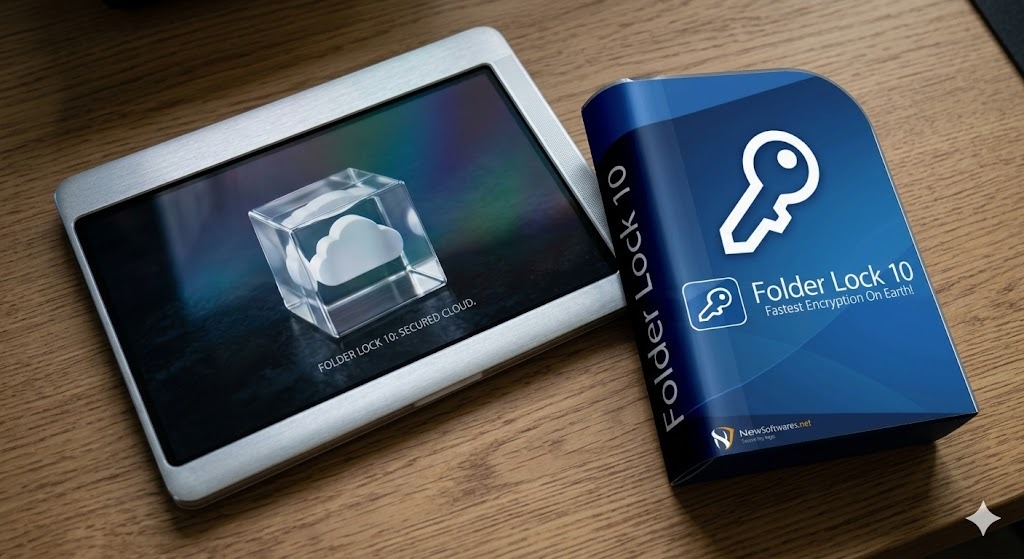
Cryptographic Cloud Synchronization
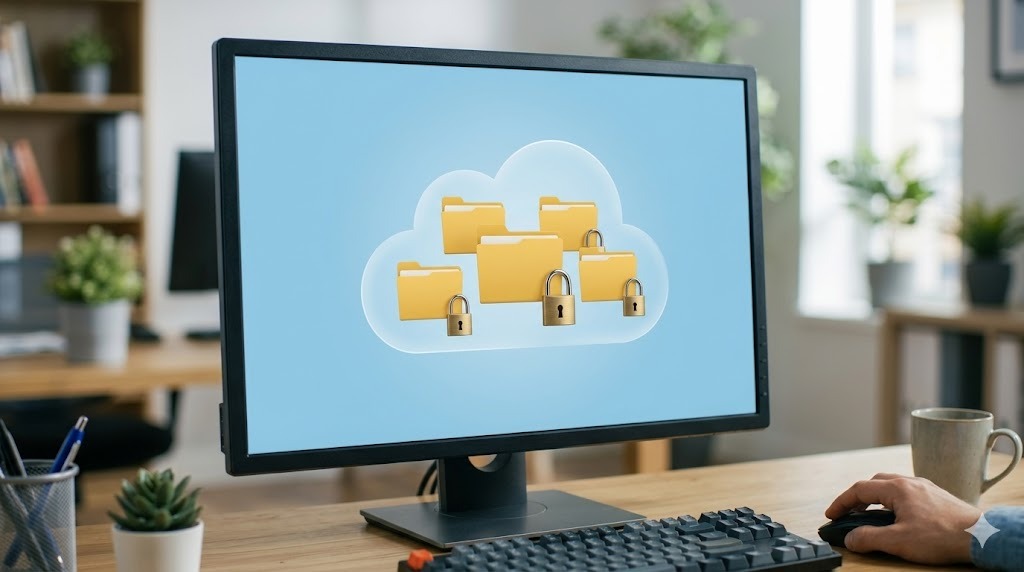
Sharing family files via standard cloud providers leaves data vulnerable on third-party servers. Modern cryptographic tools solve this by applying AES encryption to your files before they leave your device. These secured digital containers can then be seamlessly synced across Google Drive, Dropbox, or OneDrive. Your family can access these protected files on iOS, Android, or Windows devices, but the cloud provider never possesses the decryption keys.
Intruder Tracking and Hack Monitoring
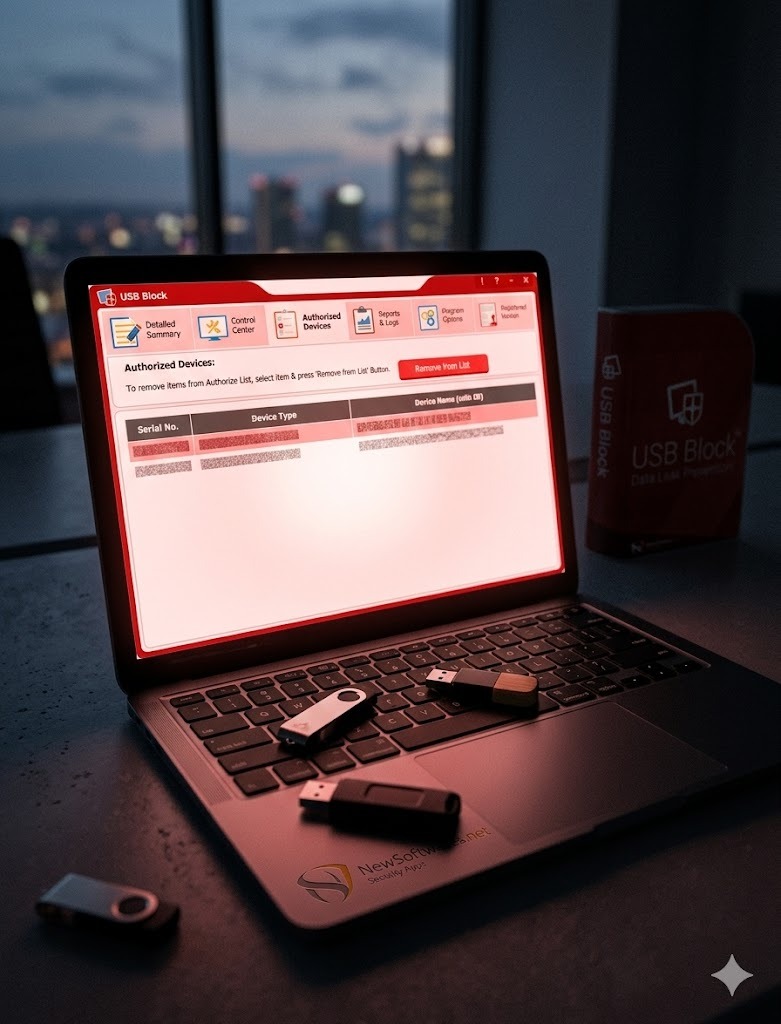
If you suspect someone is actively trying to bypass your device restrictions, active monitoring features provide absolute clarity. Certain mobile vault applications meticulously log every failed PIN attempt. On smartphones, they can even be configured to silently capture a photograph using the front-facing camera when an incorrect credential is entered, providing you with a definitive audit trail of snooping attempts.
Digital Enclaves for Financial Data
To prevent accidental in-app purchases or the exposure of sensitive identity documents, parents should avoid storing credit card numbers in a standard web browser. Instead, utilize dedicated "Wallet" modules. These encrypted enclaves isolate your banking details, social security numbers, and private family notes, ensuring they are entirely segregated from the device's daily, unprotected usage.
Irreversible Data Purging
Simply moving a sensitive document to the recycle bin does not erase it; the data remains on the hard drive and can be easily restored by curious users using free recovery software. For highly confidential documents (like outdated tax returns or financial statements), specialized file shredding utilities overwrite the data multiple times. By adhering to strict cryptographic deletion protocols, these tools ensure that erased data can never be recovered by anyone using the shared family computer.
Biometric vs PIN vs Pattern App Locking
| High | |||
| 4-6 Digit PIN | Fast | Low | Medium |
| Pattern Lock | Fast | Very Low | Low |
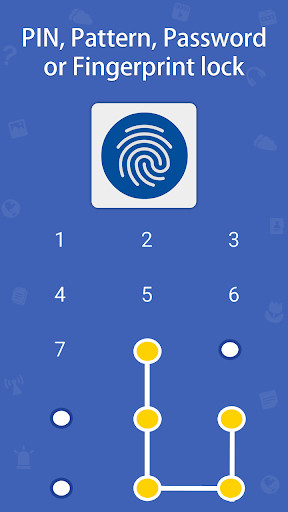
Verdict: Biometric is ideal for daily convenience, but always back it up with a strong alphanumeric password—never a pattern, which children can easily memorize by watching your finger swipe.
Platform Specifics & Highly Requested Guides
We receive hundreds of queries about exact file-locking mechanics on both Android and iOS. Below are definitive answers to the most common granular requests.
How to Get iPhone Lock Screen on Android
Many users transitioning from iOS search for an ios 26 lock screen on android or ask how to make android lock screen look like iphone. Android allows deep customization via launcher apps and third-party lock screens available on the Play Store. However, from a security standpoint, replacing your native lock screen with a cosmetic "iPhone style" app can introduce vulnerabilities. If you do this, rely on a dedicated app locker underneath it to secure your files, as cosmetic lock screens often bypass basic security constraints.
Create a Locked Folder on iPhone
A frequent question is: Can I create a folder for pictures and lock it on iPhone apart from the hidden folder?
Natively, Apple's iOS limits this. While iOS 16+ allows FaceID locking for the built-in "Hidden" photos album, you cannot natively select a custom album and put a unique password on it. To truly folder lock app iphone style, you have two options:
- Use the Apple Notes app: Insert photos into a Note, then tap the menu and select "Lock Note". This acts as a pseudo-locked folder.
- Download a dedicated third-party vault app from the iOS App Store.
Regarding files: How to lock folder in files iphone? Natively, the Files app does not support password-protecting ordinary folders. You must encrypt the file on a Mac first, or use a secure cloud vault.
Amazon App Parental Controls
For households using Alexa or Amazon tablets, managing the amazon parental control password is critical. To restrict purchases, open the Amazon App > Settings > Account Settings > Purchase Approvals, and require a PIN for every transaction. This prevents accidental one-click buying by kids playing on your device.
Common Errors and Fixes
How to recover access to a locked app if I forgot my PIN?
If you use a third-party app locker and forget the PIN, recovery depends on your initial setup:
- Check registered email: Most premium app lockers send a secure reset link to your verified email.
- Biometric fallback: If fingerprint was enabled, use it to enter the app, then navigate to settings to change the PIN.
- Do not clear data: Clearing the app's cache/data via Android Settings will often permanently delete any vaulted photos inside it.
Can someone bypass app lock by restarting the phone?
Lower-tier app lockers suffer from "startup lag." When the phone reboots, the OS takes several seconds to launch the app locker service, leaving locked apps vulnerable for a brief window. High-quality tools integrate with device admin permissions to ensure app lock behavior immediately re-engages before the home screen is accessible.